Ryan Price and the Media
Commanding Chaos for Coworking, Open Source and Creative Communities

Main navigation

  • Blog
  • About
  • Contact
  • Subscribe
  • Drupal Easy
  • Florida Creatives
  • Liberatr
  • Lifestream
  • ThinkUp
  • Home
User account menu
  • Log in

Breadcrumb

  1. Home
  2. Smart Mailbox Formula: Flagged Messages

Smart Mailbox Formula: Flagged Messages

By rprice , 29 October 2008
Categories
HowTo
Tech
Tags
email
interface
Mac OS
Teaching

One very simple way to keep your email organized is by using flags in Apple's Mail program. Starred If you're like me, you are pulling in most, if not all, of your messages from a GMail or a Google Apps account. This means that your "starred" items in your Google Mail will also be "flagged" once they get to your Mac.

Flagging messages in Mail.app can be done via the menu Message > Mark > As Flagged, or by simply pressing Command-Shift-L when you have selected the message(s) you would like to flag.
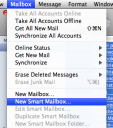
New Smart MailboxCreating a Smart Mailbox is very simple. Just choose the menu item Mailbox > New Smart Mailbox...

At this point, you be presented with a popup box asking you for a Smart Mailbox Name, and several options. The first line of options reads:
Contains messages that match all of the following conditions:
You can also match TODO items, or ANY of the following conditions. For this example, we will leave this line alone.

The first condition by default matches the "From" email address of any messages. This is what we want to change:
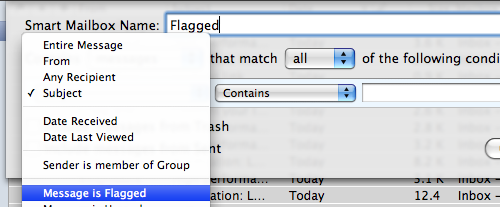
Flagged Filter
Click on the select box for "From", and choose Message is Flagged from the list. The other options in this condition will disappear.

Add a FilterThis Smart Mailbox is already pretty useful, but our Flagged messages from several months ago probably aren't too useful any more, so we'll add another rule. Click on the plus to the right of the popup box to add a new condition.

When you are finished creating this new rule, the second line should read:
Date Recieved is in the last 60 Days
Before you press OK, take a seecond to admire your work. You're being smart with your email.
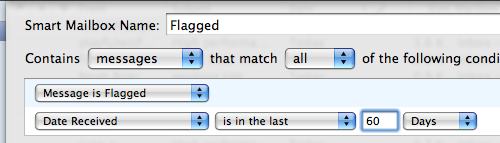
Date Received Filter

After you OK the creation of the new Smart Mailbox, a new "Flagged" item appears in the left sidebar of your Mail window with a little purple icon. If you don't see it, click the words SMART MAILBOXES until the arrow to the left of the words is pointing down, and your Smart Mailbox should appear.
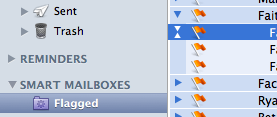
Flagged Folder All of your flagged messages from the last 60 days are in this smart mailbox, but they have not been moved from their home in your other mailboxes either. If you remove the flag from a message with Command-Shift-L, the message will no longer appear here.

While this is all great, I did notice one annoying thing: Since all my mail is coming in from a GMail server, several of the messages in this folder were duplicates, because they also appear in GMail's "Starred" folder. In order to fix this problem. I selected my Smart Mailbox, and then chose the menu item Mailbox > Edit Smart Mailbox...

Once you're editing again, just add a rule that reads as follows:
Message is in Mailbox: Inbox
After you OK this change all your duplicate GMail messages should disappear.

If you've got a Smart Mailbox Formula that helps you wade through the ocean of information we all seem to be swimming in these days, please share it in the comments below. I'm sure we could all use a little bit of help.

Twitter / liberatrRyan Price | Facebook Flickr: Photos from Liberatr.netInstagramYouTube :: Videos by liberatrLinkedIn: Ryan Price

I am nobody's puppet.

Disclaimer: My blogs are not a reflection of my employer's opinions, but are my own, and often unfiltered. Also, some links on this site may be part of an Amazon Associates program, so by clicking on them you help me pay for my independence.

Drupal Association - Individual Member Acquia Certified Developer Acquia Certified Developer Miro Video Player | Download torrents and podcasts, play any video, and do it with style. Gimp - a freely distributed piece of software for such tasks as photo retouching, image composition and image authoring. Processing is an electronic sketchbook for developing ideas. Build a custom arts management solution. LibreOffice is the free power-packed personal productivity suite that gives you six feature-rich applications for all your document production and data processing needs

  • Thanks again, Steve. I hope
    14 years 1 month ago
  • Hi - bit late responding here
    14 years 1 month ago
  • Should have added...
    14 years 2 months ago
  • Hi Ryan,
    14 years 2 months ago
  • Ryan,
    14 years 2 months ago
  • It is happening and you are
    14 years 5 months ago
  • In close future I want to
    14 years 8 months ago
  • the article has been
    14 years 9 months ago
  • I think it's a great coup for
    14 years 9 months ago
  • My hardware box acts as an
    14 years 10 months ago

  • Blogging Fringe
  • Bringing Art and Technology Together
  • Drupal Easy Podcast
  • Florida Creatives Podcast
  • Invisible Frisbee
  • Liberatr.net Facebook
  • Liberatr.net
  • Orlando Podcasters
  • Orlando Scene TV
  • Orlando Video
  • Our Yellow House
  • Pulpp.net Orlando Blogs
  • Pulpp.org Real-Time Collaboration
  • Shrink Your Ecological Footprint
  • The Student of the Game

  • Alex Rudloff
  • Apartment E
  • Brian Feldman
  • Chad Miller
  • Charles Krueger
  • Chris Messina
  • Chris Scott
  • Chris Wojda
  • Daniel H. Pink
  • Daniel Smith
  • Darren McDaniel
  • David Terrar
  • Destination Journal
  • Dr. XNLB
  • Elizabeth Maupin
  • Eric Marden
  • Hugh McLeod
  • Jana Waring
  • Jeremy Harrington
  • John Rife
  • Josh Hallet
  • Katie Ball
  • Katharine Miller
  • Lloyd Davis
  • Loren Feldman
  • marc. with a c.
  • Marc Rapp
  • Mario Andy Lurig
  • Mark Baratelli
  • Mike G
  • Noel Hidalgo
  • PSFK
  • Rebekah Lane
  • Stephen Matheny
  • Thomas Thorspecken
  • Tim Welch

  • Florida Drupal Group
  • Izon Orlando
  • Orlando Coworking
  • Orlando Fringe
  • Orlando Improv Festival
  • Orlando PHP
  • Orlando Puppet Festival
  • Page 15
  • The Daily City
  • Urban ReThink

Powered by Drupal

<none>

  • RSS Feed